Loading page
Help and user manual
How to approve agent actions, handle Unknown and Conflict outcomes and use every area of the portal. For a hands-on walkthrough, start the guided tour with the Tour button in the header.
What the portal is for
AI agents in your company ask the gateway to perform high-risk business actions, for example changing a supplier's bank account or approving an invoice. The gateway is the only component that holds the ERP credentials. For each request:
- A policy decides: allow, deny, or require human approval.
- If approval is required, the action waits in the portal until enough different people approve it.
- The gateway executes it once, reads the ERP back to check the result, and records everything in a tamper-evident evidence log.
The portal is where people approve, monitor and audit this. It only sees actions that go through the gateway (see the yellow note on the Overview page).
Signing in
Open the portal and choose Sign in. You are sent to your company's identity provider.
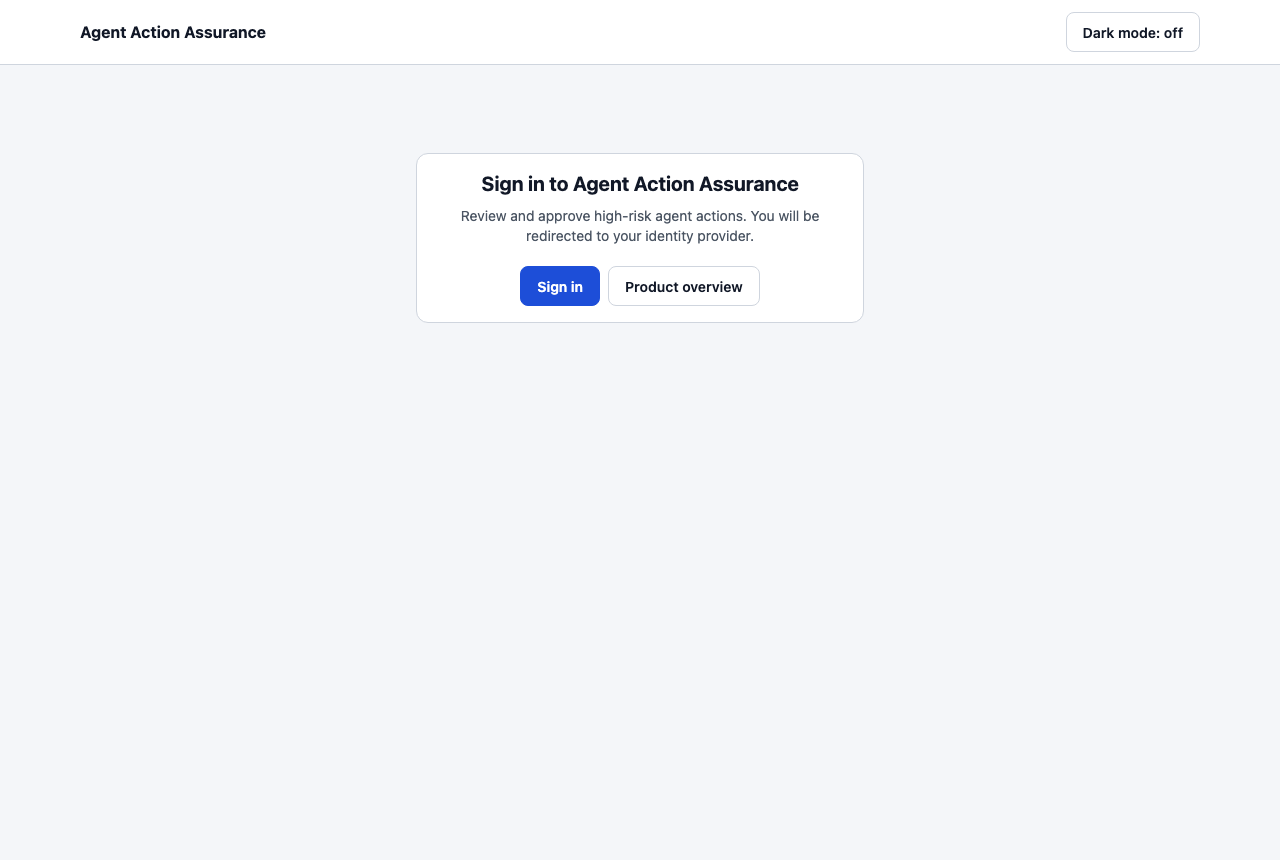
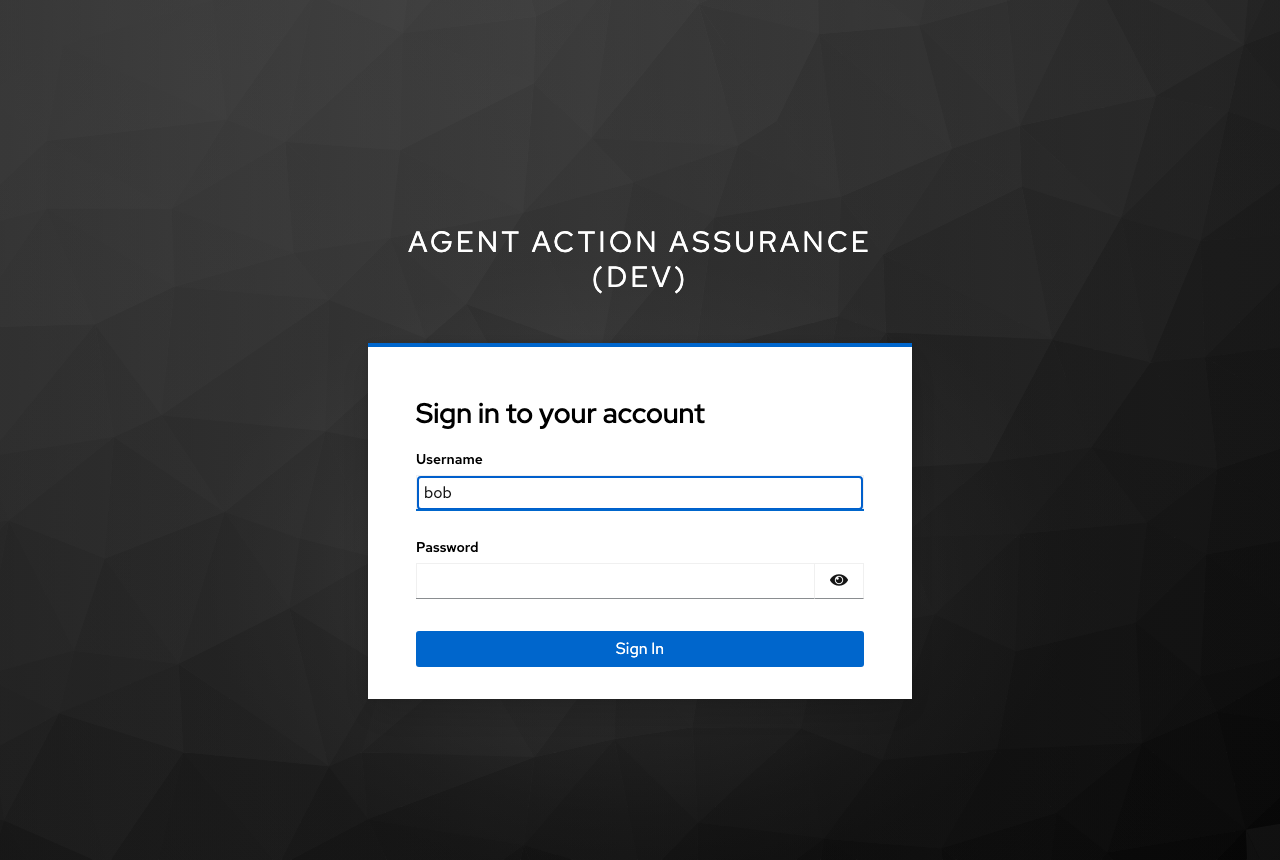
Enter your user name and password. Approvers and admins may also be asked for a second factor (authenticator app code or passkey). This is required before your approval decisions are accepted.
After signing in you return to the page you asked for. Your name, tenant and roles appear in the top-right corner. In BFF mode, your session is kept in an HttpOnly cookie backed by PostgreSQL, so refreshing the page or restarting a portal replica keeps you signed in until the session expires; no bearer tokens are stored in browser storage or copyable. Choosing Sign out ends both the portal session and your identity-provider session everywhere.
Creating an account and joining an organisation
If you have no account yet, choose Create account on the start page. Your company's identity provider asks for a user name, a password, your name and your email address. The new account does not belong to an organisation yet, so the portal shows only a welcome page with two ways in.
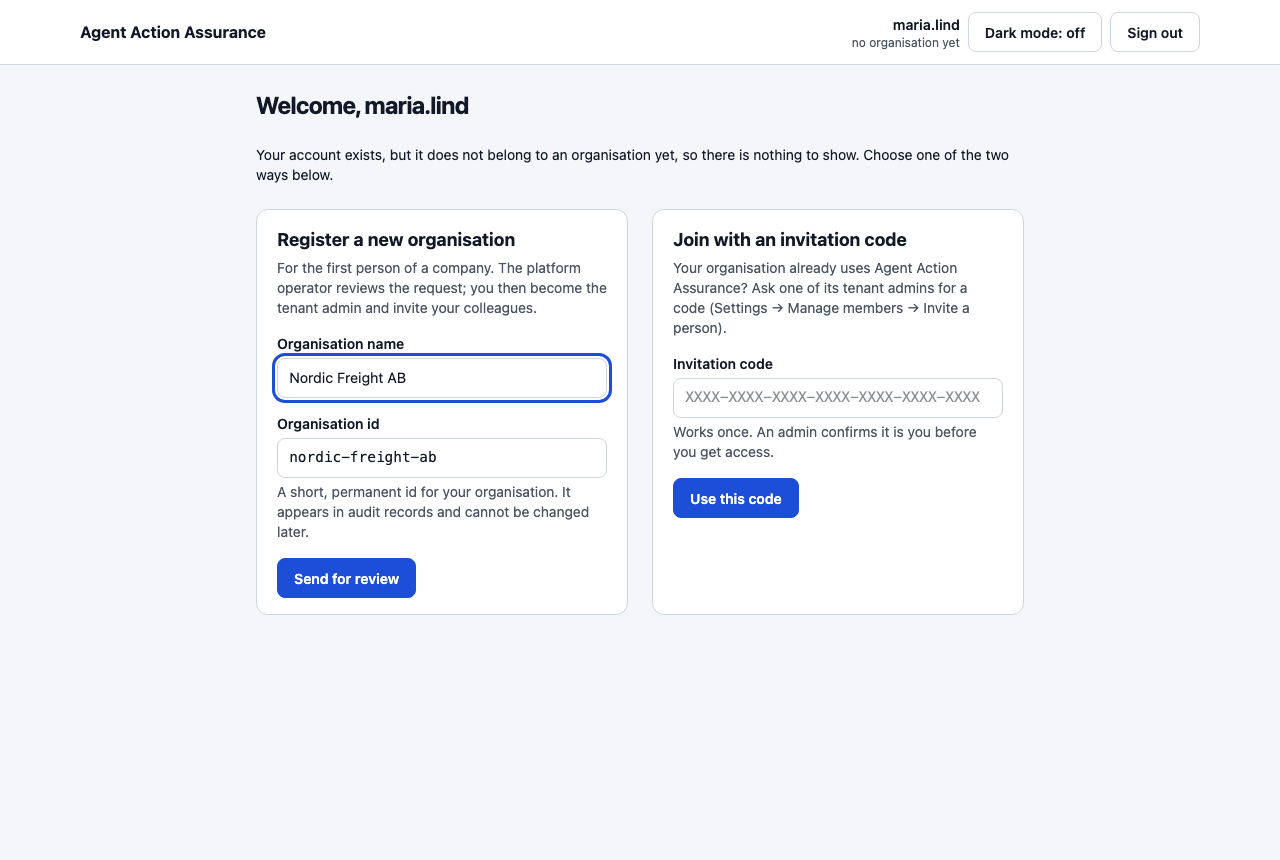
- Register a new organisation (for the first person of a company): enter the organisation's name and a short permanent id, then Send for review. The platform operator checks the request. When it is approved, the page changes by itself into the normal portal and you are the organisation's first tenant admin. If it is rejected you see the reason.
- Join with an invitation code (your organisation already uses the portal): ask one of its tenant admins for a code, enter it and choose Use this code. A code works once. It does not let you in by itself: the admin first confirms that the account that used the code is really you.
While you wait you can withdraw the request and start again. A request that nobody decides expires after 14 days. If the page says the decision is made but the account is not linked yet, wait a moment or choose Sign in again.
The guided tour
The Tour button in the header starts a two-minute interactive tour. New users are offered it once after their first sign-in.
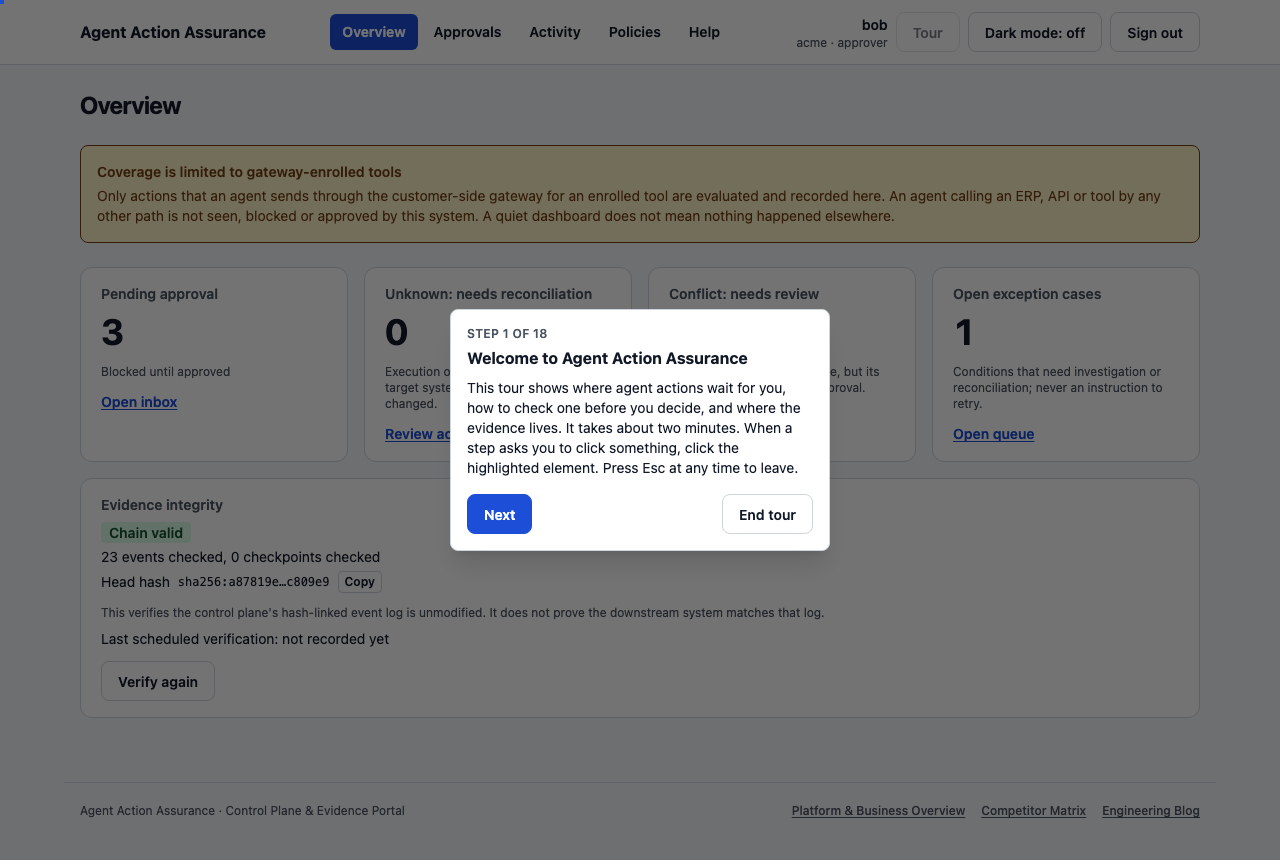
- Next and Back move through explanation steps.
- Guided clicks: some steps say "Click the highlighted element to continue." The rest of the page is dimmed and only the highlighted element can be clicked. Clicking it does the real thing (for example, opens the inbox), and the tour continues on the new page. Click it for me does the same from the keyboard.
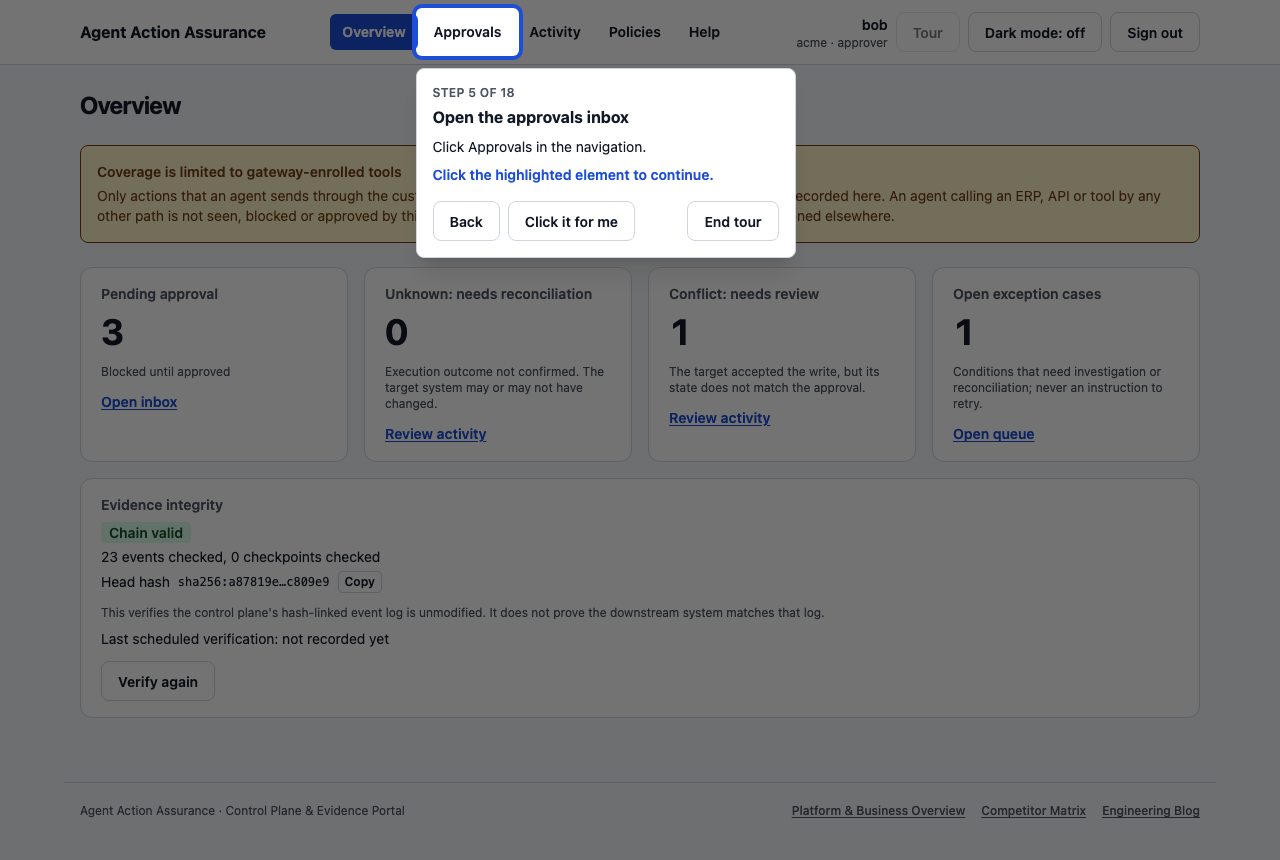
- On an action's detail page the tour walks through the requested change, the reason it needs approval, the approvals so far, your decision and the evidence. It never approves or rejects anything for you.
- Esc or End tour leaves at any time. If you reload the page, an unfinished tour continues where you were.
- The tour adapts to your role. Approvers see the approval walkthrough. Admins and security reviewers also visit Exceptions, Operations (which repeats the "UNKNOWN may or may not have executed" warning) and Evidence; admins also visit Agents and Settings. Steps for things that are not on screen (for example an empty inbox) are skipped.
Overview
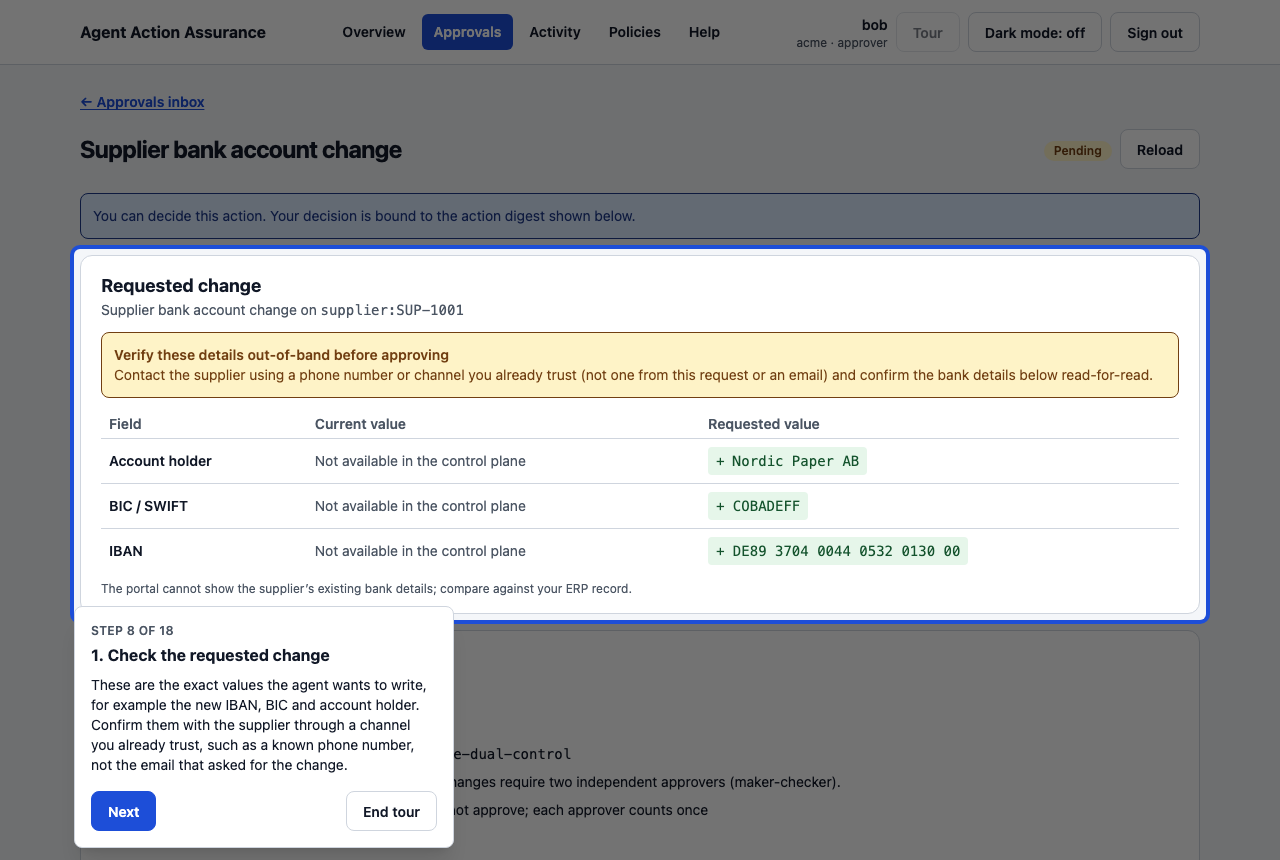
The start page after sign-in.
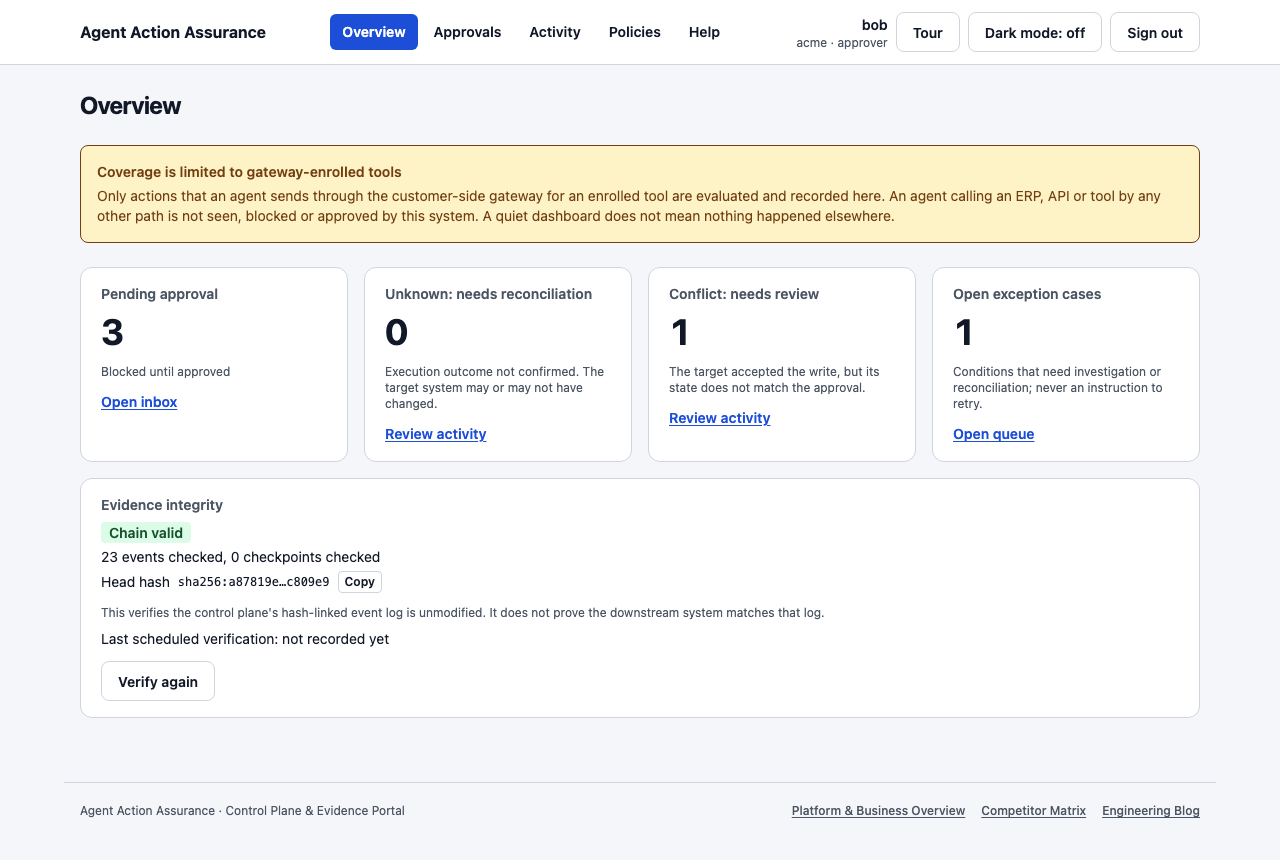
| Card | Meaning | What to do |
|---|---|---|
| Pending approval | Actions blocked until enough people approve | Open the inbox |
| Unknown: needs reconciliation | Execution outcome not confirmed. The target system may or may not have changed; the system reconciles instead of retrying blindly | Review activity; usually settles once reconciliation finishes |
| Conflict: needs review | The target accepted the write, but its state does not match the approval | A person must review it: see Unknown and Conflict outcomes |
| Open exception cases | Conditions that need investigation or reconciliation; never an instruction to retry | Open queue in Exceptions |

Evidence integrity shows whether the hash-linked evidence log is unmodified (Chain valid is normal) along with Last scheduled verification timestamp. It proves the portal's own log was not altered; it does not prove the ERP matches the log.
Approving or rejecting an action
Step 1: open the inbox
Choose Approvals. Every action waiting for a decision is listed, and the list refreshes every 30 seconds. Account numbers are masked here.
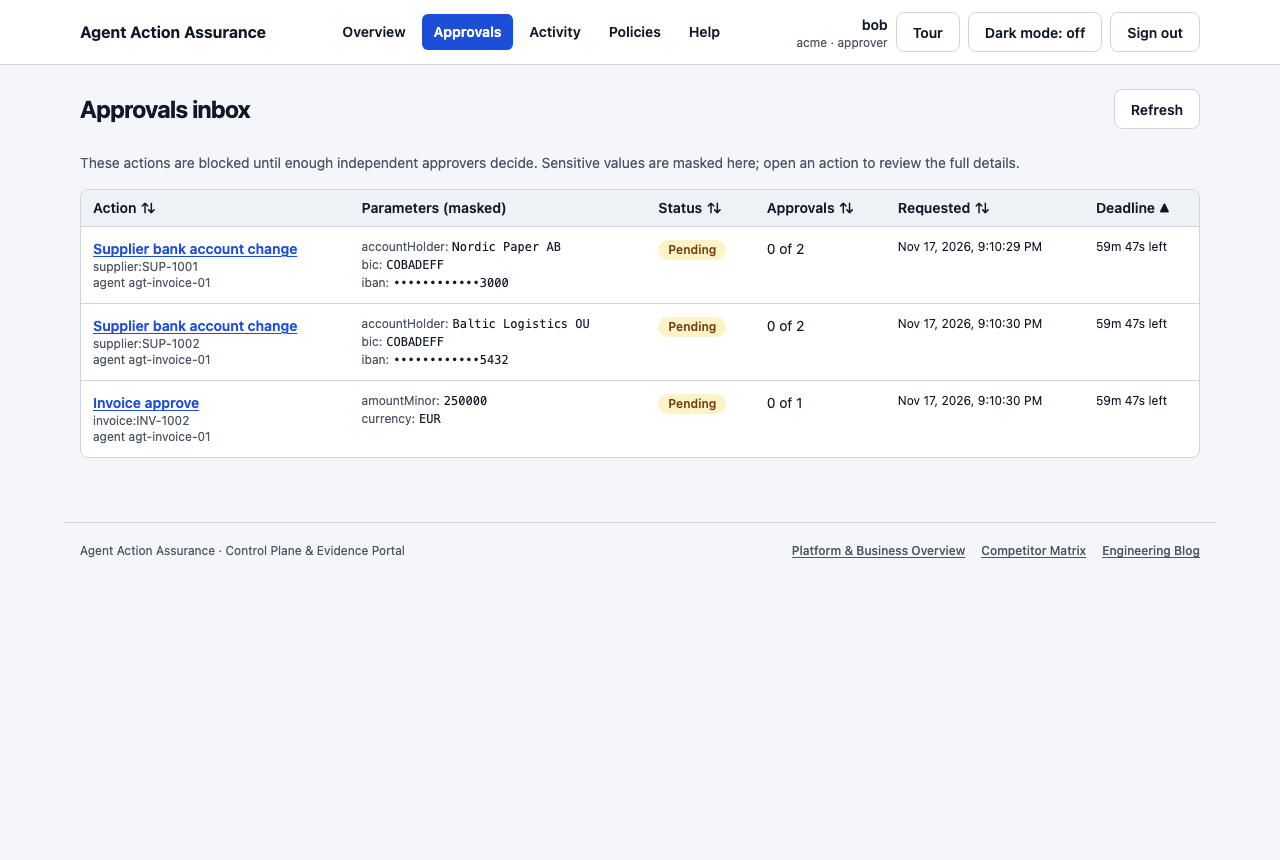
Open an action from the list.
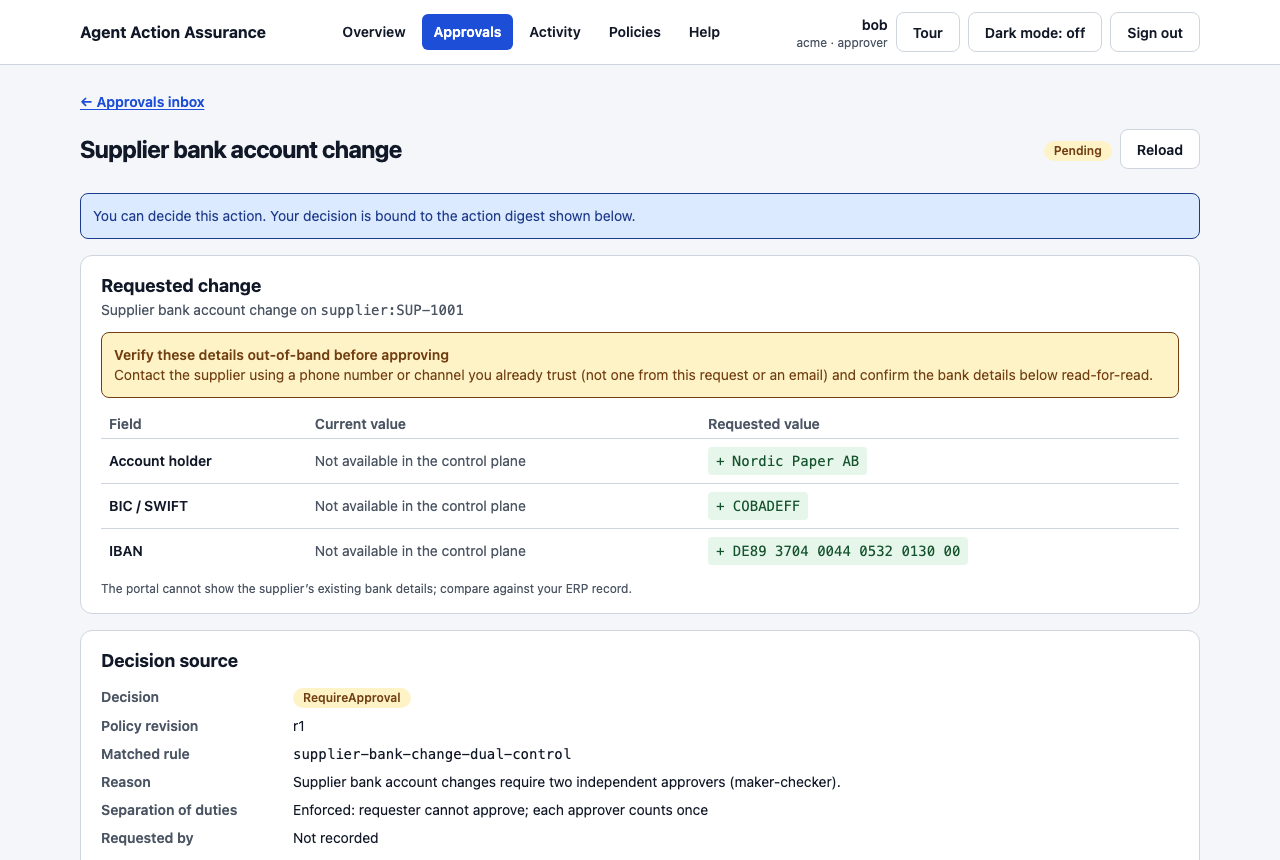
The blue bar at the top tells you whether you can decide this action. If you cannot, it says why: for example you requested it, you own the agent, or you have already decided.
Step 2: check the requested change
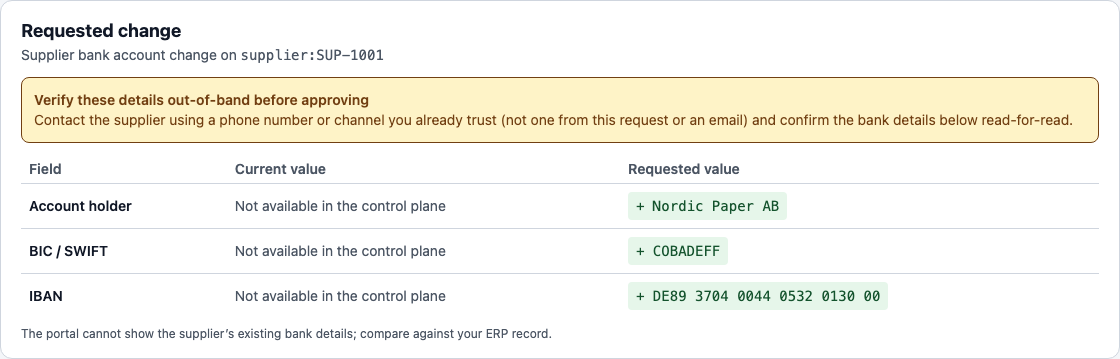
These are the exact values the agent wants to write. Verify them out of band: call the supplier on a number you already have on file, not one from the request or from an email, and read the details back. The portal cannot show the supplier's current bank details, so compare against your ERP record.
If the agent gave a business justification or a deadline ("execute before"), they are shown on the page too. The justification is the agent's own words: treat it as a claim to check, not as proof.
Step 3: understand why it needs approval
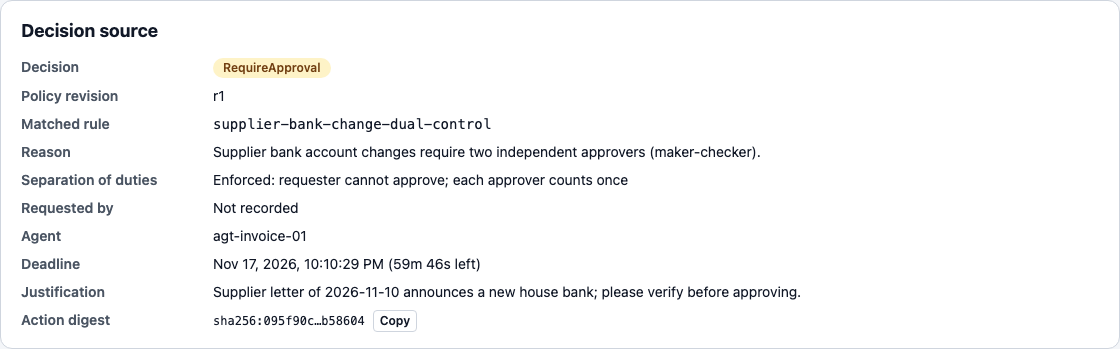
- Matched rule / Reason: which policy rule required approval, and why.
- Separation of duties: the requester and the agent's owner can never approve; each approver counts once.
- Action digest: a fingerprint of the exact request. If anyone changes the IBAN or amount later, your approval no longer applies and a new approval is needed.
Step 4: see who has approved

The bar shows progress towards the required number of approvals (for example 1 of 2).
Step 5: decide
Choose Approve… or Reject… at the bottom of the page.
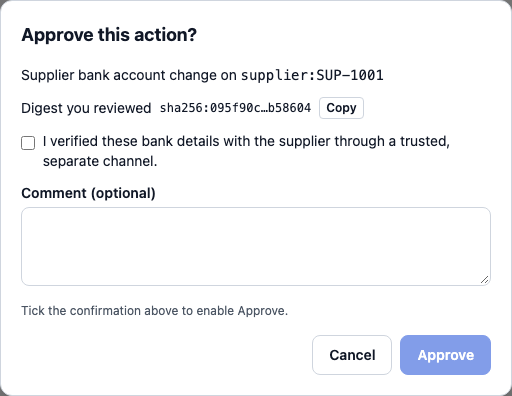
- The dialog shows the digest you reviewed.
- For bank-detail changes, tick I verified these bank details… before Approve is enabled.
- Add a short comment if useful, for example "Confirmed by phone with A. Svensson, 10:42". Never put bank details in comments.
- If your sign-in is older or weaker than required, you are asked for your second factor first.
When the last required approval is given, the action becomes Approved and has a short window (typically 15 minutes) in which the agent can execute it. Approved does not mean the change has been made: wait for Succeeded.
Step 6: follow the evidence

Every step (evaluated, approval recorded, approved, redeemed, outcome) is in the timeline. Entries contain ids, digests and states, never bank details.
Unknown and Conflict outcomes
Unknown: the gateway sent the change, but the ERP did not answer in time. The system asks the ERP whether the change was applied (by its idempotency key) and settles the action as Succeeded or Failed. It never sends the change again on its own. If an action stays Unknown for more than about 10 minutes, tell your administrator: the ERP or its lookup may be down. Hold payments to that supplier until it is settled.
Conflict: the ERP accepted the change, but reading it back shows different values. For example, the ERP rewrote the account holder's name, or someone changed the record afterwards.
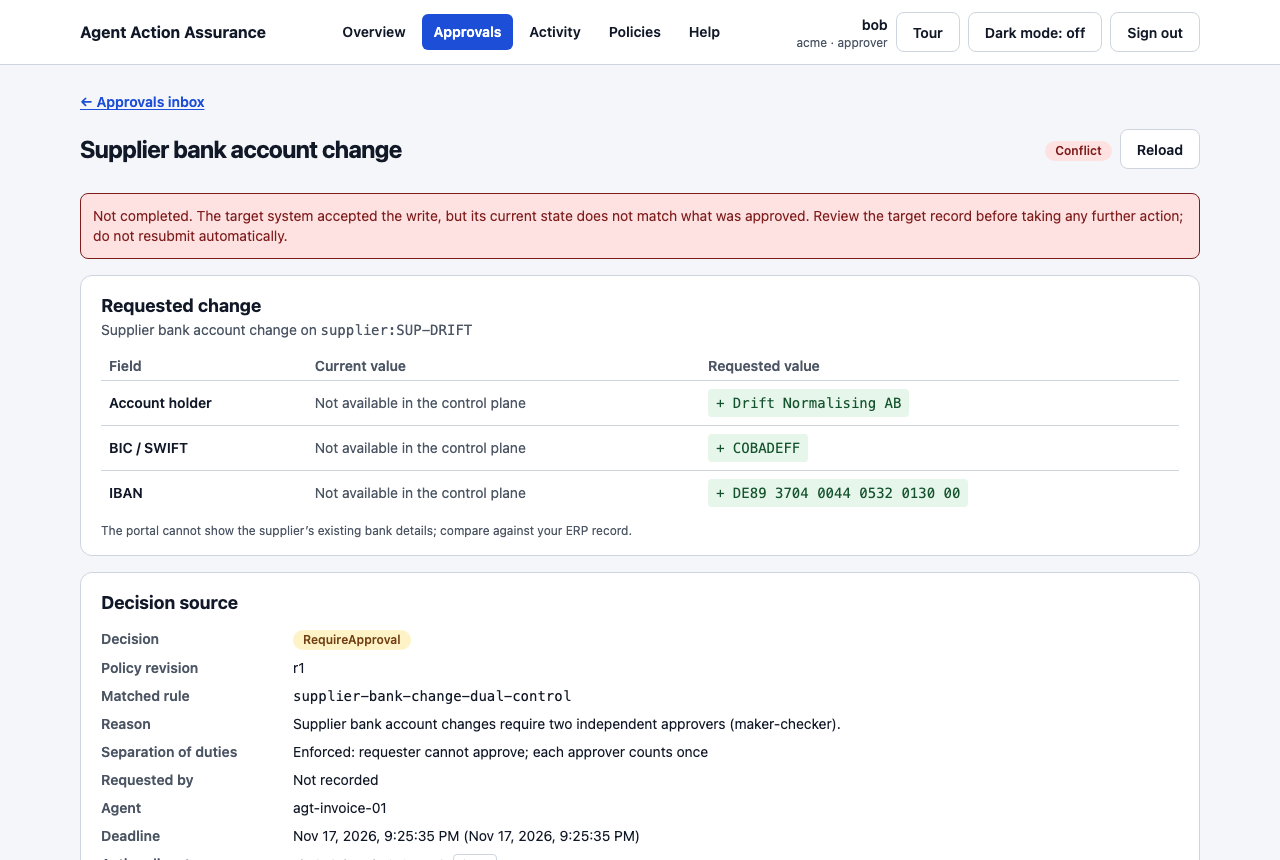
What to do:
- Do not resubmit the request automatically.
- Open the supplier record in the ERP and compare it with the requested values on this page.
- Either correct the record in the ERP under its own controls, or have the agent submit a new request, which needs fresh approval.
- Admins are notified about Conflicts (event
action.outcome_conflict) if notifications are configured.
Exceptions (admin, security reviewer)
Exceptions collects every action that needs follow-up because its outcome is not settled or does not match what was approved. Tenant admins and security reviewers see it in the menu. Approvers do not, but they still see the action's status on its own page.
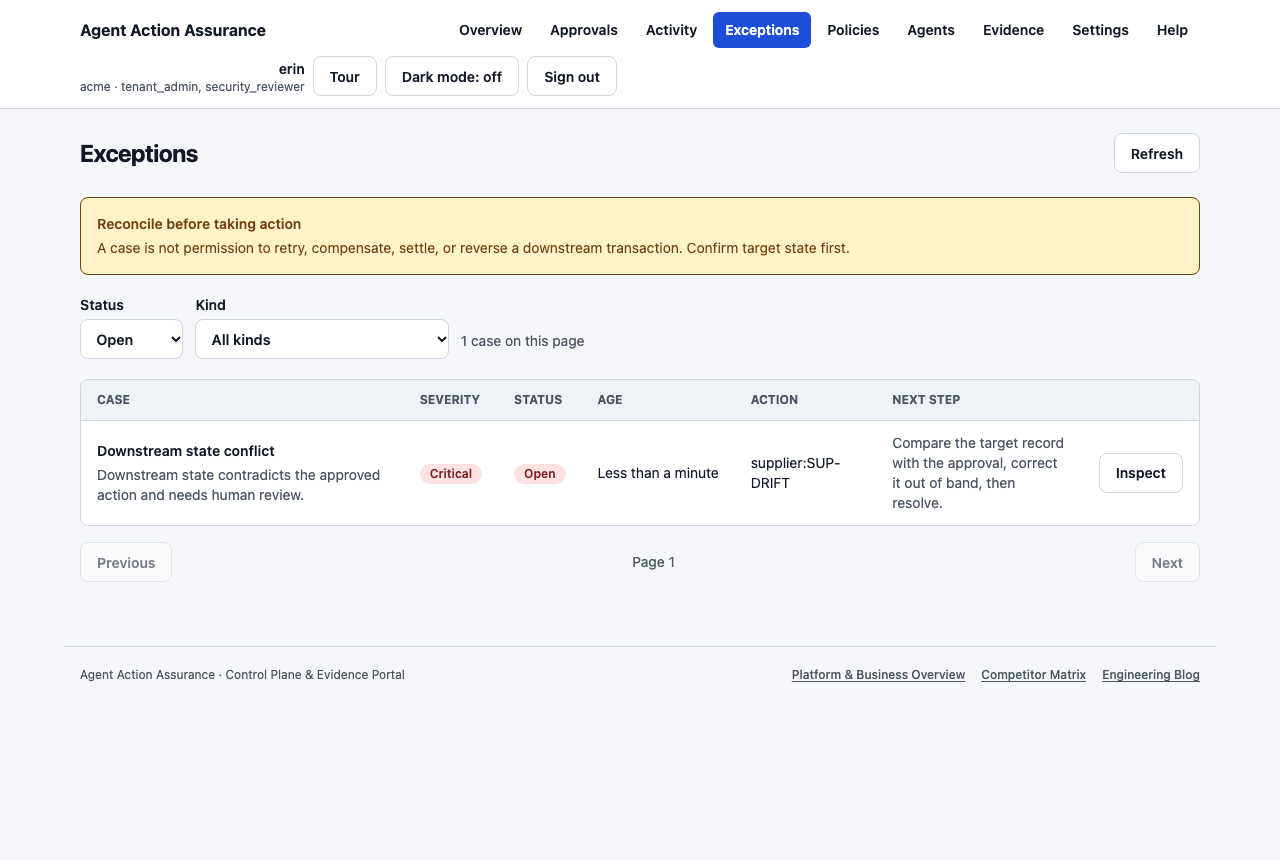
The queue shows, for each open case, its severity, kind, age, the linked action and a recommended next step. Filter by Status (Open or Resolved) and by kind; Previous and Next page through older cases.
| Kind | Opened when | Severity | How it closes |
|---|---|---|---|
| Unknown outcome | The gateway reported that the ERP did not confirm the result | High | By itself, when reconciliation finds the change was applied (Succeeded), not applied (Failed) or different (a Conflict case opens) |
| Stale execution | An action has been Executing for longer than the configured limit (default 2 minutes) | Medium, High after 1 hour | By itself, when the outcome is reported or reconciled |
| Evidence integrity conflict | Verifying the evidence chain failed | Critical | By itself, when verification passes again |
| Downstream state conflict | The ERP accepted the change, but the read-back shows different values | Critical | Only by a tenant admin, with a resolution code |
| Duplicate execution suspected | A second action for the same resource and action digest was seen within the detection window | Medium, High after 1 hour | Cannot be closed by hand or trigger a retry; keep open while both actions and the target record are investigated and escalated |
| Verification overdue | An action completed without a downstream observation within the configured verification window | High | Cannot be closed by hand or trigger a retry; closes only when a supported verification process records a conclusive observation |
| Evidence incomplete | A finished action is missing an expected lifecycle event in the evidence trail | High | Cannot be closed by hand; preserve the append-only trail, escalate the missing lifecycle event, and never rewrite history |
No case ever retries the action. The recommended next step never says "resubmit". An Unknown change may already be in the ERP, and sending it again could pay a supplier twice. That is also why Unknown, stale and integrity cases cannot be closed by hand: only the system, after checking the ERP or the evidence, may say what really happened.
Choose Inspect to open a case: its summary, the linked action and its current state, and how the case closes.
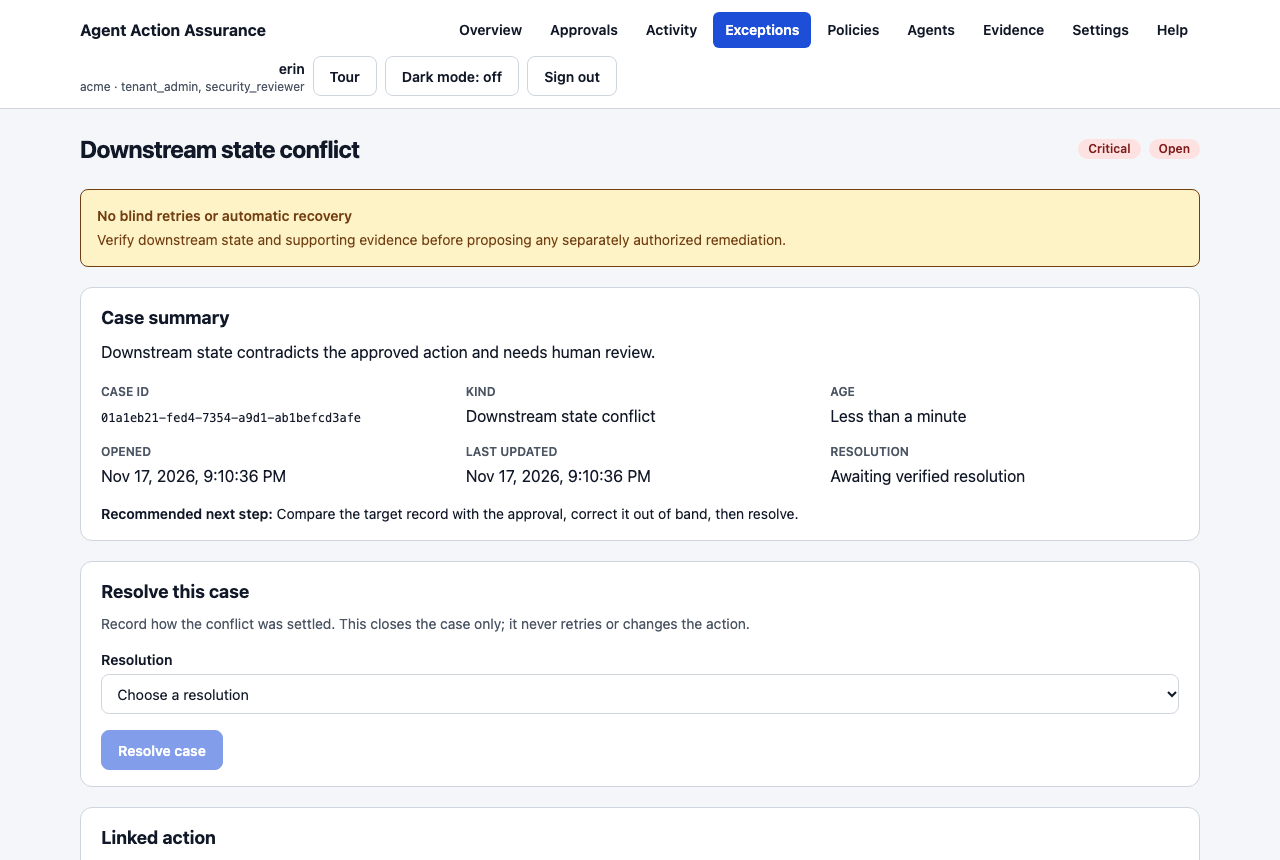
Resolving a Conflict case (tenant admin)
- Compare the ERP record with the approved values on the linked action's page.
- Fix it in the ERP under its own controls, or accept the ERP state if it is correct (for example a normalised name).
- In Resolve this case, choose the Resolution that matches what you did, then Resolve case and confirm.
- You may be asked for your second factor. The resolution, your identity and the code are written to the evidence log. The action itself is not changed or re-run.
- Target record corrected out of band: you corrected the ERP record.
- Target state reviewed and accepted: the ERP state is correct as it is.
- Escalated outside the portal: someone else (for example finance or the ERP owner) now owns it.
If someone else changed the case while you had it open, the portal tells you to reload and check again. For other kinds, the case page explains how the case will close instead of showing a resolve button.
Operations (admin, security reviewer)
Operations (/operations) is a read-only incident triage queue for tenant admins and security reviewers (GET /v1/operations/actions). Approvers do not see it in the navigation.
It lists Unknown and stale Executing actions first (oldest first), followed by Failed actions, with summary counts, loaded/total progress, Load more pagination, manual Refresh, and a 30-second auto-refresh toggle (Pause auto-refresh / Resume auto-refresh).
UNKNOWN may or may not have executed. There is no resubmit, retry, or "mark as succeeded" control anywhere on the page. Work with the customer's gateway owner and follow docs/runbooks/reconciliation-backlog.md to confirm target ERP state first; use the Action and Evidence links in each row to inspect the action and its hash-linked timeline.
Activity
Activity lists the 50 most recent actions. Filter by Status (for example Unknown or Conflict) and use Refresh to update.
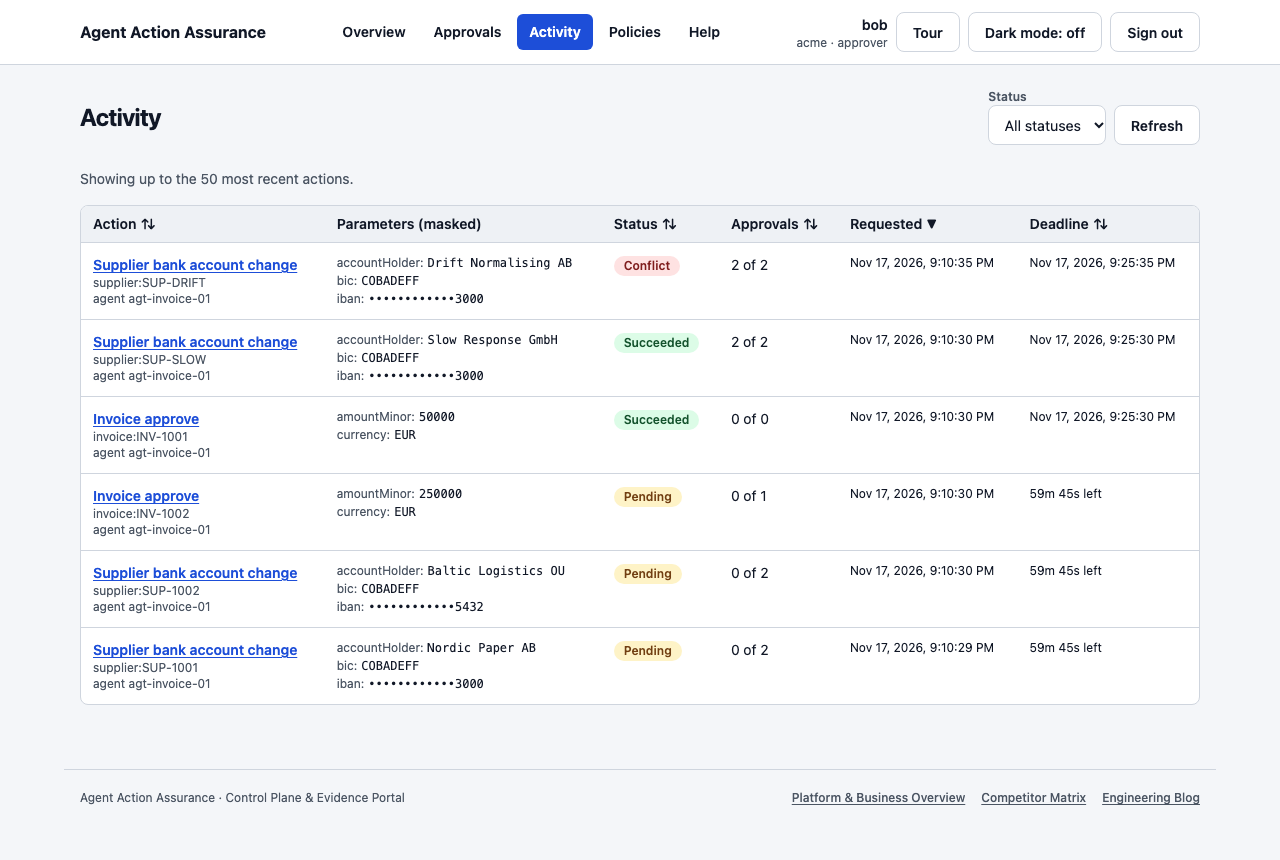
| Status | Meaning |
|---|---|
| Pending | Waiting for approvals |
| Approved | Approved, not yet executed |
| Executing | Being executed now |
| Succeeded | Executed; verified when the ERP read-back matched |
| Failed | The ERP rejected it; nothing was changed |
| Unknown | Outcome not confirmed yet; being reconciled |
| Conflict | ERP state contradicts the approval; needs review |
| Denied | Rejected by policy, by the agent's scope or by an approver |
| Expired | The approval deadline or execution window passed |
| Cancelled | Withdrawn by an admin or by deactivating the agent |
Policies
The policy decides, for every request, whether it is allowed, denied or needs approval. Anything not matched by a rule is denied.
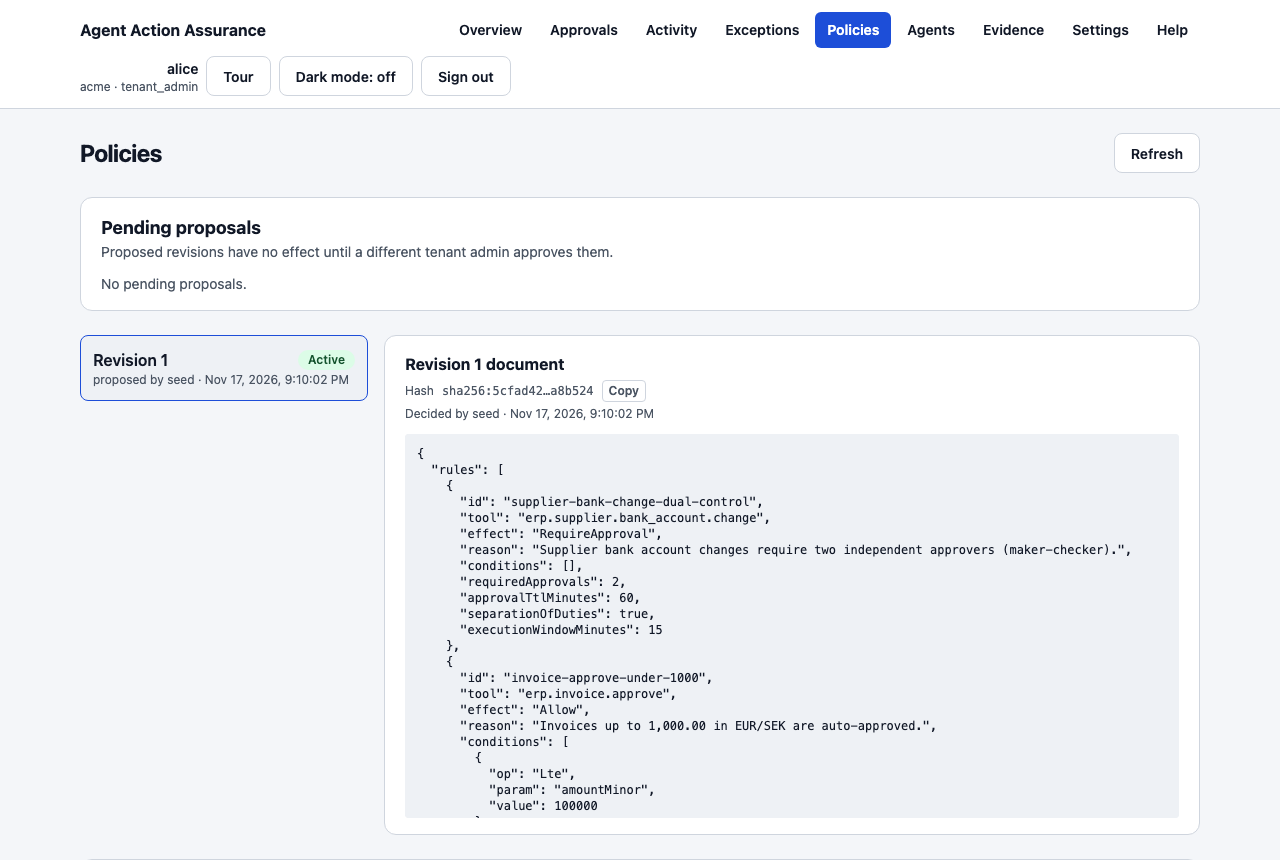
- Revisions: every version is kept, and the active one is marked.
- Pending proposals (admin): an admin proposes a change; it only takes effect when a different admin approves that exact version (maker-checker).
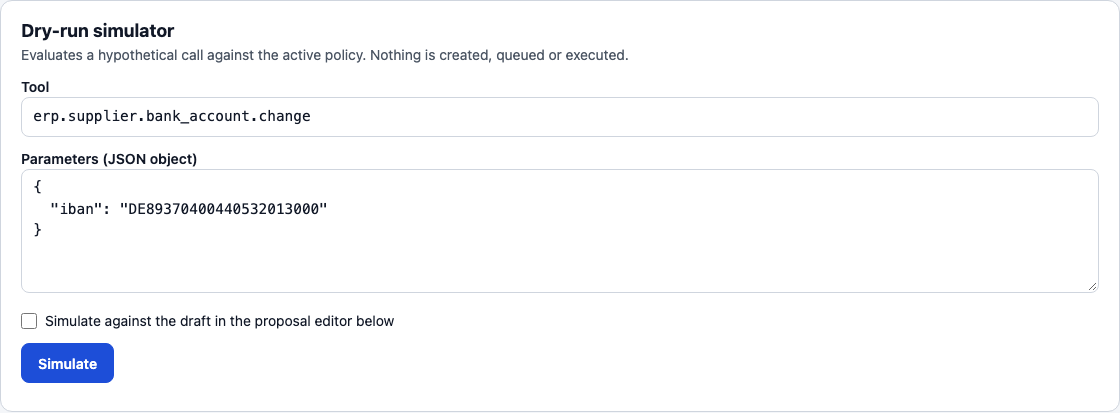
- Dry-run simulator: enter a tool and parameters to see which rule would match and what would happen. Nothing is created or executed.
Agents, agent scope and the kill switch (admin)
Agents lists each registered agent with its accountable owner and status.
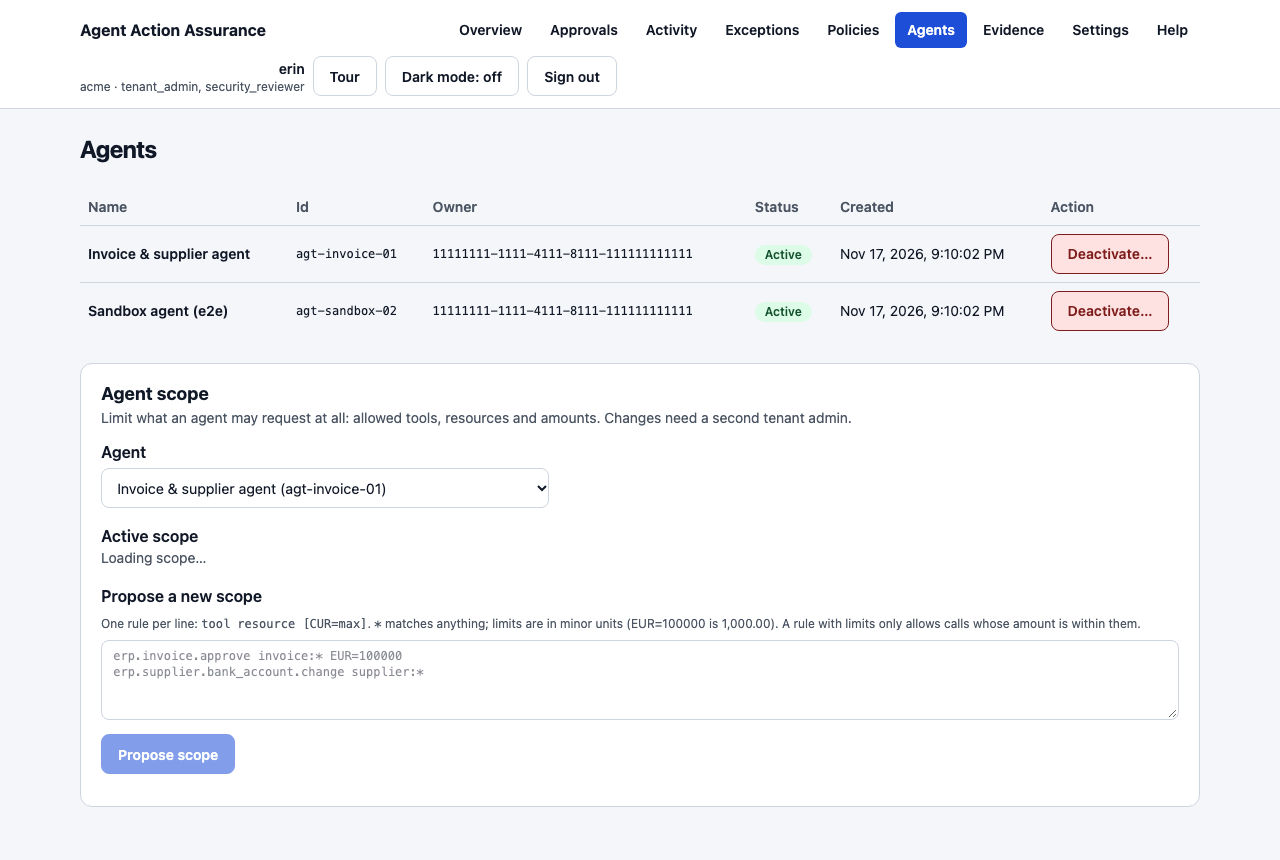
Deactivate… is the kill switch. The agent can no longer request actions, and its open actions are cancelled. Reactivating it requires a different admin.
Agent scope
The Agent scope section on the Agents page limits what an agent may request at all, before the policy is checked. Pick the agent from the list to see its Active scope and any Pending scope proposals.
- No scope (the default): the policy alone decides what the agent may do.
- With a scope: a request reaches the policy only if one rule matches its tool and resource. Anything else is denied straight away with the reason
agent_scope_deniedand recorded in the evidence log.
Write a scope in Propose a new scope, one rule per line:
erp.invoice.approve invoice:* EUR=100000
erp.supplier.bank_account.change supplier:*- Each line is
tool resource [CUR=max …].*matches anything, soinvoice:*means every invoice. - Limits are per currency, in minor units:
EUR=100000is 1,000.00 EUR. A rule with limits only allows calls whose amount and currency are within them. A rule with limits never matches a call that has no amount; add a second rule without limits for such tools if they should be allowed. - Lines starting with
#are ignored. Start from the active scope copies the current rules into the editor. - To make an agent unrestricted again, propose the single rule
* *.
Changes are maker-checker, like policies. Propose scope creates a proposal; a different tenant admin opens it, checks the rules and the document hash, and chooses Approve… or Reject…. An approved scope applies from the agent's next request. Actions that were approved earlier but fall outside the new scope can no longer execute: they expire instead.
Evidence (admin, security reviewer)
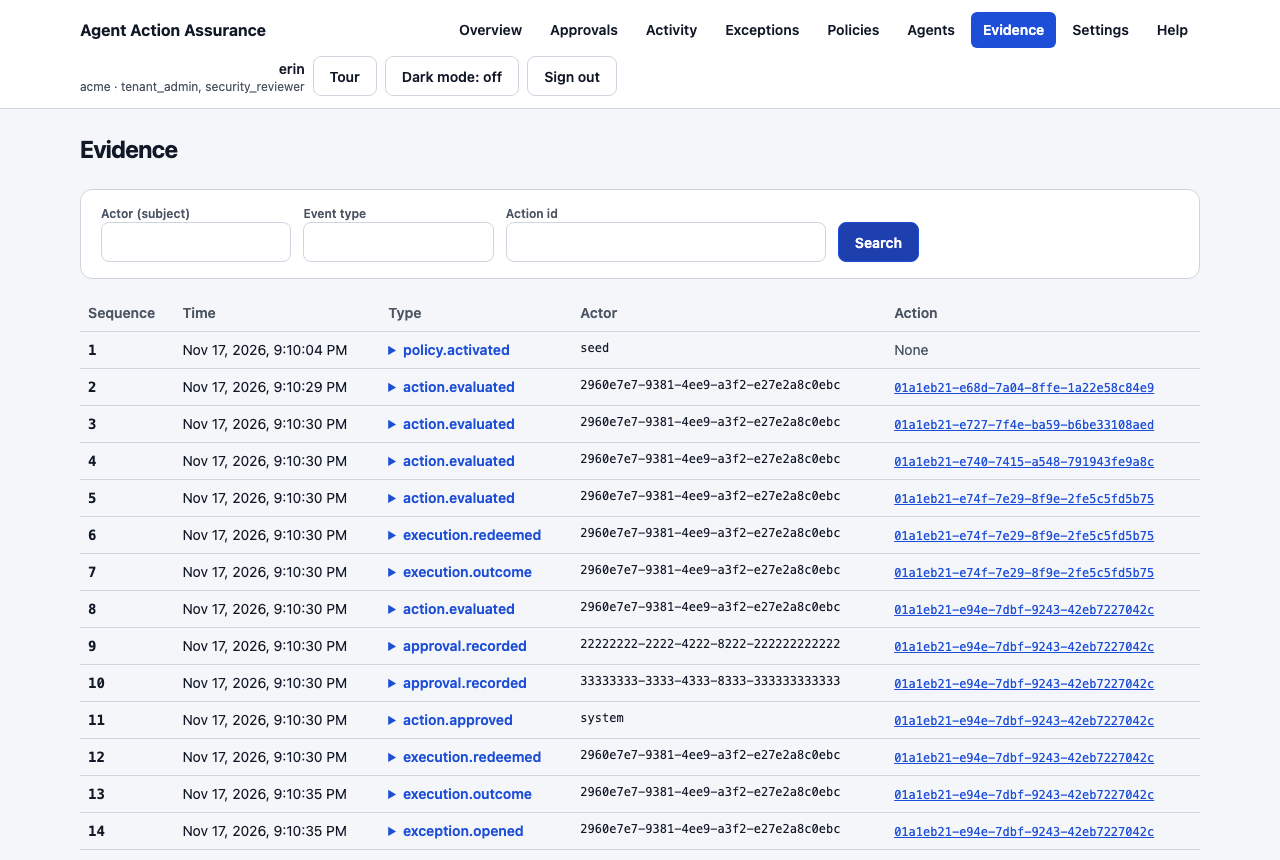
Search the hash-linked evidence log by actor, event type or action id. Admins and security reviewers can also verify the chain and export it for auditors. The export can be checked offline with the aa-verify tool.
Each action also has a signed receipt on its detail page: choose Inspect signed receipt, then Download receipt (.json) to save receipt-<actionId>.json. The panel displays the exact offline command (aa-verify receipt receipt-<actionId>.json --public-key anchoring-public-key.pem) with a Copy command button. Fetch the anchoring public key from GET /v1/evidence/anchoring-key (extract .publicKeyPem into anchoring-public-key.pem; pass retired keys for older receipts).
Settings (admin)
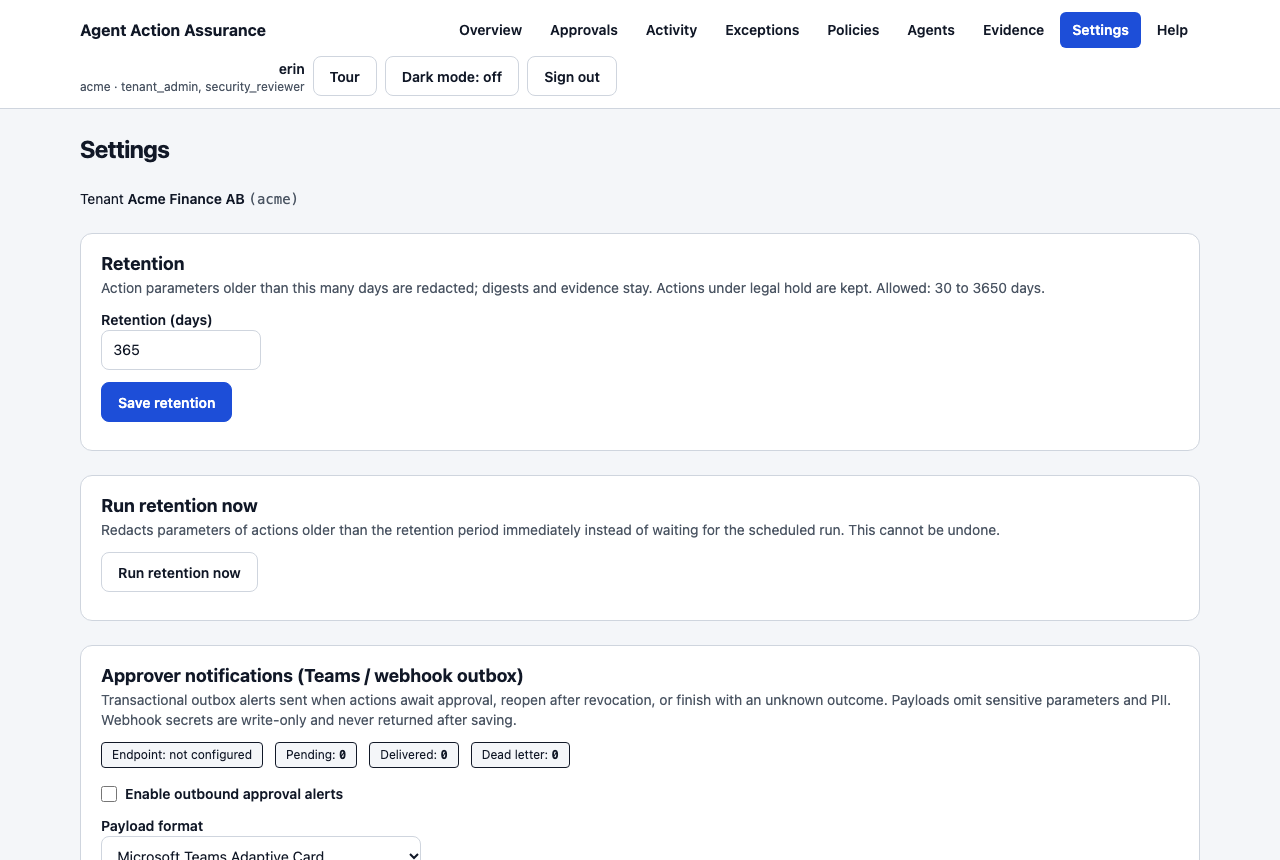
- Retention: parameters of finished actions (for example IBANs) are redacted after this many days (30–3650). Digests and evidence remain. Actions under legal hold are kept.
- Run retention now: redact due actions immediately. This cannot be undone.
- Approver notifications: send approval requests and Unknown/Conflict alerts to Microsoft Teams or a signed webhook. Messages contain ids and links only.
- Incident: revoke a person's open approvals: use when an approver's account may be compromised.
- Data subject access request: export what the system holds about a person (GDPR Art. 15).
Members and invitations (admin)
Open Settings and choose Manage members. The page lists the people of your organisation and the invitations.
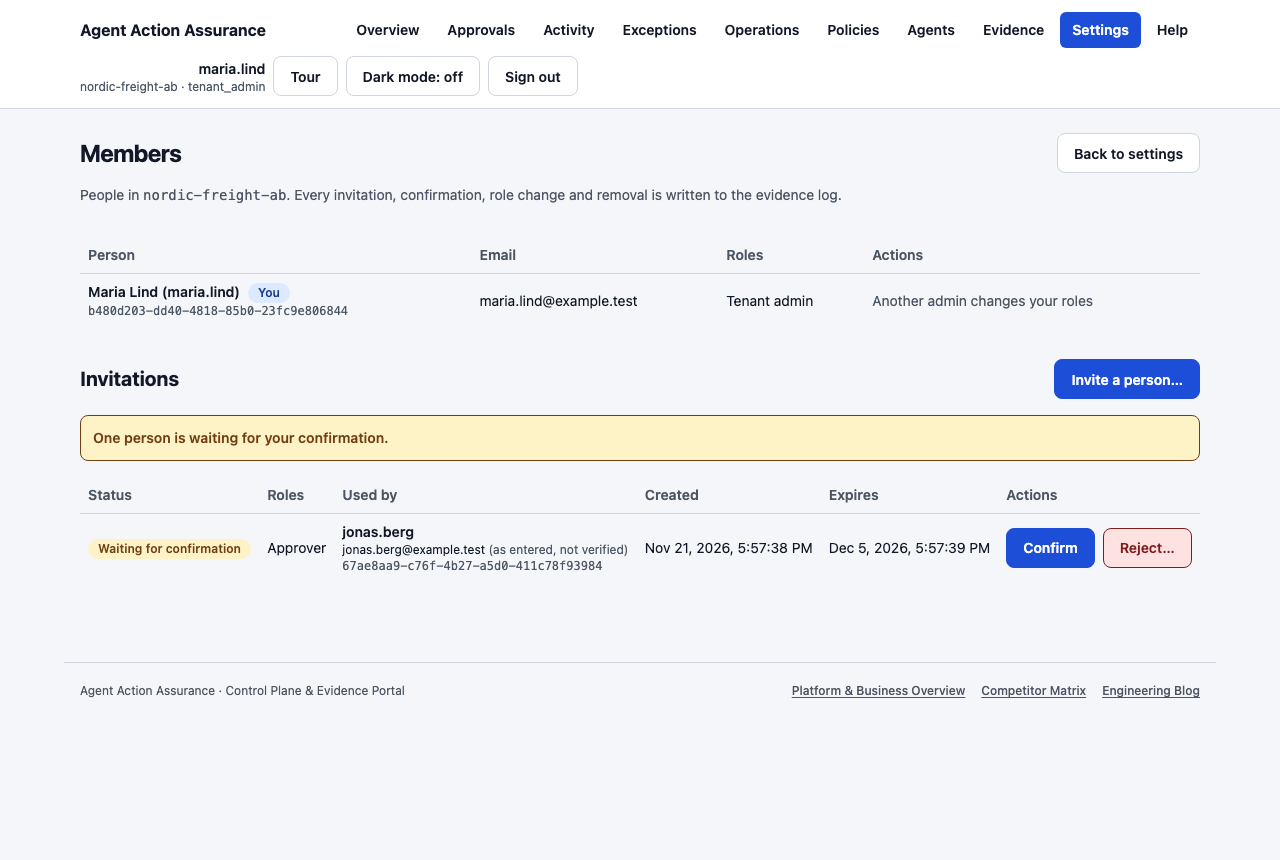
- Invite a person…: choose the roles and create the code. The code is shown once. Send it to the person over a channel you trust. It expires after 7 days if nobody uses it.
- The person creates an account and enters the code. The invitation then shows Waiting for confirmation with their name, the email address they entered (not verified) and their account id.
- Check outside the portal that this is the person you invited, for example by phone. Then choose Confirm. If it is someone else, choose Reject…. Until you confirm, the account has no access.
- Change roles… and Remove… take effect at once: the person is signed out everywhere and must sign in again.
- You cannot change your own roles or remove yourself, and the last tenant admin cannot be removed. Another tenant admin does that.
- Revoke cancels an invitation that has not been used.
- Every invitation, confirmation, role change and removal is written to the evidence log.
One tenant admin can give a person the approver role. Use it with care: the default policy needs two independent approvers, and separation of duties still applies to every decision.
Platform administration (platform admin)
A platform admin works for the operator of the installation, not for an organisation. After signing in they see only Platform and Help. They cannot see any organisation's actions, policies, people or evidence.
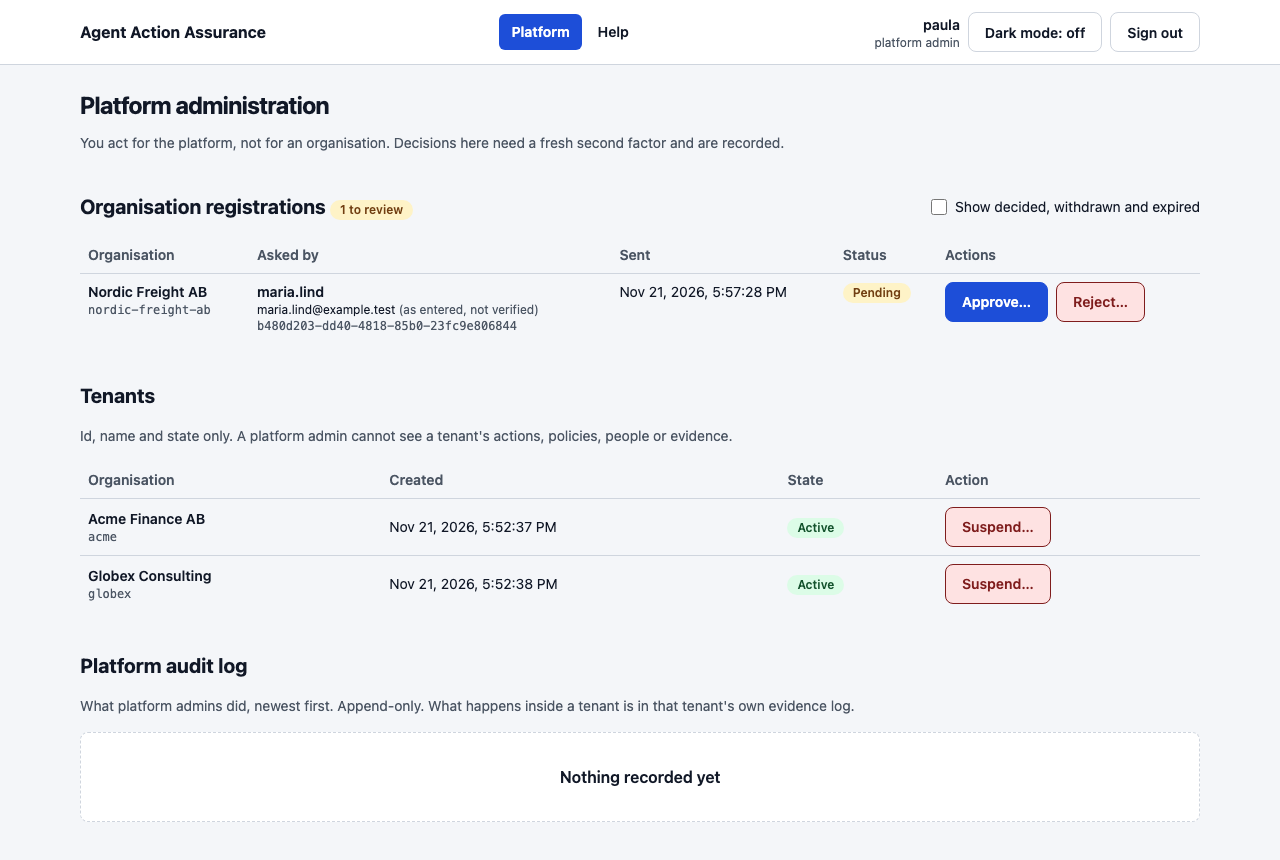
- Organisation registrations: each request shows the organisation's name and id and who asked. Check with a known contact of that company that the person may act for it, then Approve… (you can change the id) or Reject… with a reason. Approval creates the organisation and makes the applicant its first tenant admin.
- Tenants: id, name and state of every organisation. Suspend… (a reason is required) stops all changes for that organisation within seconds: agents can start no new actions and nobody can approve. Reading still works. Reactivate… lifts it.
- Platform audit log: what platform admins did, newest first. It cannot be edited.
Platform admin accounts are created by the operator of the identity provider, never in the portal. They always need a second factor.
Who can do what
| Task | Approver | Tenant admin | Security reviewer |
|---|---|---|---|
| See Overview, Activity, Policies | ✔ | ✔ | ✔ |
| Approve or reject actions | ✔ | ✔ | |
| Propose or approve policy changes | ✔ (not your own proposal) | ||
| Deactivate or reactivate agents | ✔ | ||
| Propose or approve an agent scope | ✔ (not your own proposal) | ||
| See the exception queue | ✔ | ✔ | |
| Resolve a Conflict exception case | ✔ | ||
| Search, verify and export evidence | ✔ | ✔ | |
| Settings (retention, notifications, incidents, DSAR) | ✔ | ||
| Invite, confirm and remove members; change roles | ✔ (not your own) |
Separation of duties always applies. Nobody can approve an action they requested, or one from an agent they own.
A platform admin is not in this table: that account belongs to no organisation and can only approve organisation registrations and suspend or reactivate organisations (see Platform administration).
Troubleshooting
| Symptom | Cause and fix |
|---|---|
| "You cannot decide this action" | You requested it, own the agent, already decided, or lack the approver role. Another approver must decide |
| Asked for a second factor when approving | Approvals require a stronger sign-in. Use your authenticator app or passkey; ask an admin to enrol one |
| Approval refused as stale or changed | The request changed after you opened it (new digest). Reload and review again |
| Action stays Unknown | The ERP may be down or its lookup failing. Tell your administrator and hold payments to that supplier |
| No resolve button on an exception case | Only Conflict cases are resolved by hand, and only by a tenant admin. Other kinds close by themselves (see Exceptions) |
Action denied with agent_scope_denied | The agent's scope does not allow that tool, resource or amount. An admin can propose a wider scope on the Agents page; a second admin must approve it |
| After signing in you only see "Welcome" and no menu | Your account does not belong to an organisation yet. Register one or use an invitation code (see Creating an account) |
| "This invitation code is not valid" | Codes work once and expire after 7 days. Ask the admin for a new one. The message is the same for a wrong, used or expired code |
| "This organisation is suspended" | The platform operator stopped changes for your organisation. Reading still works. Contact the operator |
| "The identity provider is not available" when confirming or approving | The decision is saved but the account is not linked yet. Choose Confirm or Approve… again in a moment. Nothing is created twice |
| A menu item is missing | Your role does not include it (see Who can do what) |
| The tour skipped a step | That element was not on screen, for example an empty inbox. Restart with Tour later |